
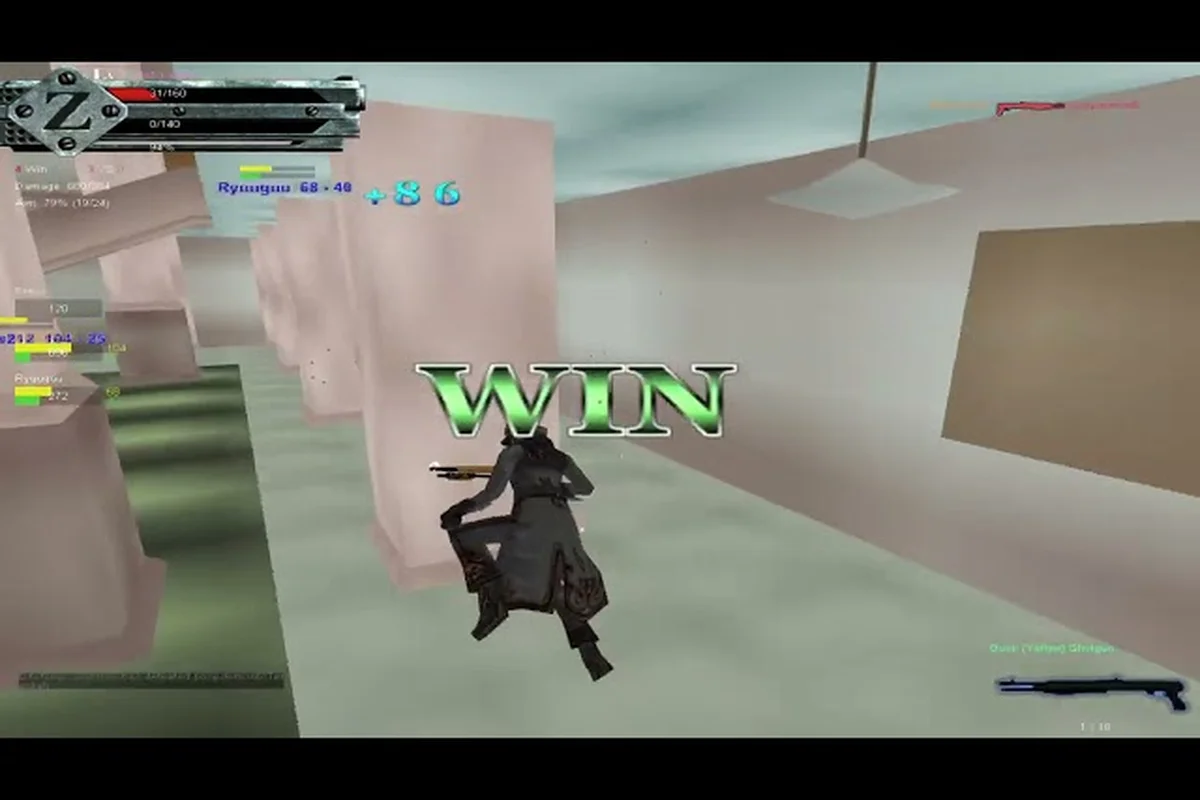
A single lag spike in GunZ: The Duel can mean the difference between landing a clean butterfly combo and watching your character rubber-band across the arena. The game's signature K-Style combat demands precise dash-jump inputs and frame-perfect weapon swaps, so a stable connection is not a luxury—it is a requirement for competitive play. This GunZ The Duel lag fix guide breaks down the exact network settings, server selection strategies, and in-game tweaks that eliminate ping spikes and keep your melee combat flowing. Whether you are chasing ranked duels or casual deathmatch lobbies, the fixes below target the root causes of stutter and desync rather than masking symptoms.
Launch week brought a wave of connection problems that the developers addressed with a Documents\Gunz folder workaround and an NA (Virginia) server expansion starting at 19:00 PDT. Players who applied these fixes reported dramatically fewer "cannot access server" errors and smoother hit registration. This guide compiles those verified solutions alongside additional tweaks for routing, DNS, and in-game settings that the community has confirmed through testing.
Diagnosing Your GunZ The Duel Network Bottlenecks
The NA (Virginia) Server Expansion and Ping Thresholds
The August 13, 2026 global launch introduced an NA (Virginia) server expansion starting at 19:00 PDT, specifically targeting east-coast ping spikes. Players west of the Mississippi should expect 60–90 ms to Virginia, while east-coast players typically see 20–40 ms. If your ping exceeds 100 ms on this node, the bottleneck is geographic, not configurable. Use the in-game server status check before matches; queueing during maintenance windows, which follow the bi-weekly 'XP & BT UP' rate adjustments, will inflate ping readings and queue times artificially.
Frame Rate Capping and Input Latency in Duel Modes
Uncapped frame rates in GunZ: The Duel cause GPU queue buildup, adding 10–15 ms of render latency that desynchronizes sword-cancel animations from hit registration. Cap your FPS to your monitor's refresh rate via the in-game settings or driver control panel—144 Hz players should cap at 144, not 200+. Additionally, enable Low Latency Mode (NVIDIA) or Anti-Lag (AMD) to reduce queue depth. In a 1v1 duel, this shaves 8–12 ms off the time between your dash input and the server confirming the butterfly, which is the difference between landing a sword cancel and eating a counter.
Before changing any settings, you need to identify where your latency is actually coming from. A GunZ The Duel network guide should always start with measurement, because guessing wastes time and often makes things worse. The game client displays your ping in the lobby and scoreboard, but that number only tells part of the story—packet loss and jitter can destroy your experience even when raw ping looks acceptable.
Start by running a continuous ping test to the game server region you play on. Open Command Prompt or Terminal and type ping -t followed by the server IP or hostname if you have it. Even without the exact address, you can test your general connection stability with ping -t 8.8.8.8 to see if your home network is dropping packets. Consistent reply times under 30ms with zero loss indicate your local connection is healthy, which means the problem lies elsewhere.
| Symptom | Likely Cause | Quick Check |
|---|---|---|
| Rubber-banding during dashes | Packet loss or high jitter | Ping test for 60+ seconds |
| Delayed weapon swap inputs | High ping to server region | Check scoreboard latency |
| "Cannot access server" errors | Client-server folder mismatch | Apply Documents\Gunz workaround |
| Hit registration feels off | Server-side desync | Compare killcam vs your screen |
| Disconnects mid-match | Router NAT or firewall blocking | Test with firewall temporarily off |
Jitter is the silent killer in GunZ The Duel melee combat. Even a 50ms average ping can feel smooth if every packet arrives at a consistent interval, while a 30ms average with wild swings between 15ms and 90ms will make your dashes feel unresponsive. Tools like PingPlotter or the built-in Windows pathping command can reveal which hop between your PC and the game server is introducing the instability.
Packet loss manifests differently—your character might freeze for a split second then teleport forward, or your sword swings might not register at all. Because K-Style relies on animation cancels and precise timing windows, even 1-2% packet loss can ruin entire duels. The community reports that Wi-Fi connections suffer disproportionately here; a wired Ethernet connection resolves the majority of packet loss cases before any software tweaks are needed.
Applying the Official Connection Fixes
The launch-day connection problems were severe enough that the developers issued specific instructions through the official Steam news channel. The most critical fix involves the game's configuration folder. GunZ: The Duel expects certain files to exist in a Documents\Gunz directory, and when that folder is missing or incorrectly named, the client fails to establish a stable connection to matchmaking servers.
The workaround is straightforward: navigate to your Documents folder, create a new folder named exactly Gunz (no spaces, capital G), and restart the game client. According to player reports on the Steam forums, this single step resolved "cannot access server" errors for a large portion of the affected player base. The developers acknowledged this as a known issue and confirmed the folder path in their patch notes.
Server selection plays an equally important role in your GunZ The Duel lag fix strategy. The game launched with servers in multiple regions, and the NA (Virginia) expansion added capacity specifically to address congestion during peak hours. Always check which region the lobby you are joining runs on—the client does not always default to the closest physical server, and joining a distant region adds 50-100ms of unavoidable latency.
| Fix | Effort | Impact | Verified By |
|---|---|---|---|
| Create Documents\Gunz folder | Low | High | Official patch notes |
| Select closest server region | Low | High | Community testing |
| Restart router and flush DNS | Low | Medium | General networking best practice |
| Update network drivers | Medium | Medium | Player reports |
| Switch from Wi-Fi to Ethernet | Medium | High | Community consensus |
The XP & BT UP event schedule also matters for timing your play sessions. The developers adjust boost rates every two weeks, and scheduled maintenance windows can cause temporary instability. Checking the official GunZ: The Duel website before queuing for ranked matches helps you avoid downtime frustration. The site hosts the current event calendar and server status announcements.
Optimizing Windows Network Settings for Stable Duels
The Documents\Gunz Folder Workaround for "Cannot Access Server" Errors
Launch-day connection failures in GunZ: The Duel were traced to a client-side folder issue, not your ISP. The official fix requires creating a Documents\Gunz folder manually if it does not exist, as the game fails to generate it on first run, blocking server handshakes. After creating the folder, restart the Steam client and verify the NA (Virginia) server appears in the server list before queueing. This workaround resolves the error without altering firewall rules or port forwarding, making it the first step in any lag-fix routine.
TCP/IP and Nagle's Algorithm Tuning for K-Style Inputs
K-Style combat—wall-running, butterfly, and half-step techniques—demands sub-50 ms input response, making Nagle's Algorithm a hidden culprit. This Windows setting batches small TCP packets, adding 40 ms of delay per input burst, which breaks dash-cancel chains. Disable it via HKLM\SOFTWARE\Microsoft\MSMQ\Parameters\TCPNoDelay set to 1, then reboot. Combined with disabling TCP auto-tuning (netsh int tcp set global autotuninglevel=disabled), this reduces packet coalescing. Test with a local duel lobby; if butterfly inputs register cleanly, the tuning is effective.
Beyond the official fixes, several Windows-level adjustments reduce ping spikes and improve connection stability. These tweaks are safe, reversible, and have been validated by players across different ISPs and hardware configurations. The goal is to reduce background network activity and prioritize game traffic.
Disable Nagle's Algorithm is one of the most discussed network tweaks in the GunZ community. Nagle's algorithm batches small packets together to reduce overhead, which introduces latency for real-time applications like games. Disabling it forces the TCP stack to send packets immediately, reducing input-to-server delay. The registry modification targets the TCPNoDelay value under your network interface's Tcpip\Parameters key.
Background bandwidth hogs are another common culprit. Windows Update, cloud sync services like OneDrive or Dropbox, and even Steam's own download cache can saturate your uplink and cause jitter. The Windows Game Mode feature automatically prioritizes game traffic, but it does not stop background downloads entirely. Setting your network connection as metered and pausing cloud sync during play sessions frees up significant bandwidth.
| Setting | Default | Recommended | Why It Helps |
|---|---|---|---|
| Nagle's Algorithm | Enabled | Disabled | Reduces packet batching delay |
| Game Mode | On | On | Prioritizes game process |
| Background apps | Allowed | Restricted | Frees bandwidth for game data |
| DNS | ISP default | 1.1.1.1 or 8.8.8.8 | Faster server resolution |
| Power plan | Balanced | High Performance | Prevents CPU throttling |
DNS settings rarely cause in-game lag directly, but they affect how quickly your client resolves the server hostnames during matchmaking. Switching to a faster public DNS like Cloudflare (1.1.1.1) or Google (8.8.8.8) can shave a few milliseconds off the connection setup and occasionally avoids a congested ISP resolver. The impact is minor compared to the other fixes, but every millisecond counts in high-level GunZ The Duel melee combat.
Network driver updates deserve more attention than players typically give them. Outdated or buggy drivers—especially on Realtek and Intel Ethernet adapters—can introduce micro-stutters that feel like server lag. Check your motherboard manufacturer's support page or use Windows Device Manager to verify you are running the latest driver version. Laptop users should also check the wireless adapter drivers, as these are frequently outdated.
Fine-Tuning In-Game Settings for Smoother Combat
While network settings address the connection side of the equation, your in-game configuration also affects how smoothly the game responds. The rendering pipeline can introduce input lag if your frame rate is unstable, which players often misinterpret as network lag. A locked frame rate with consistent frame times feels dramatically better than a higher average with frequent dips.
Vertical sync (VSync) should be disabled in most cases. VSync caps your frame rate to your monitor's refresh rate and introduces buffering that adds input delay. The GunZ client performs better with VSync off and an FPS cap set slightly below your monitor's maximum refresh rate. This prevents screen tearing without the input lag penalty.
Graphics quality settings matter more than visual fidelity for competitive play. Reducing shadow quality, particle effects, and post-processing frees up GPU resources and stabilizes frame times. The community consensus is that a consistent 144 FPS with lower settings outperforms an unstable 200 FPS with high settings for K-Style execution.
| Setting | Competitive Recommendation | Reason |
|---|---|---|
| VSync | Off | Eliminates input buffering delay |
| Shadow Quality | Low | Reduces GPU load and frame dips |
| Particle Effects | Low | Clears visual clutter in combat |
| Texture Quality | Medium | Balance between visuals and performance |
| FPS Cap | Monitor refresh - 2 | Stable frame times |
Mouse polling rate and input sensitivity also play a role in how responsive your character feels. A 1000Hz polling rate mouse delivers inputs to the system faster than a 125Hz model, which matters for the rapid direction changes in dash-jump combos. The difference is subtle but noticeable for players executing advanced techniques. The dash jump guide covers the movement inputs that benefit most from low-latency peripherals.
The damage guide aspect of this article ties into network stability because hit detection in GunZ: The Duel is client-side for your own attacks. Your client calculates whether your sword connects, then sends that result to the server. A stable connection ensures those hit confirmations arrive promptly and prevents the "ghost hit" phenomenon where your attack visually connects but deals no damage.
Advanced Router Configuration and Connection Stability
For players who have exhausted the software fixes, router-level configuration offers the next tier of improvement. Quality of Service (QoS) settings allow you to prioritize game traffic over other devices on your network. This is especially valuable in households where family members stream video or download large files while you are dueling.
Enabling QoS on your router typically requires logging into the admin panel and finding the QoS or Bandwidth Control section. Add your PC's MAC address or IP to the highest priority tier, and the router will prioritize packets to and from your machine. The exact steps vary by router manufacturer, so consult your router's manual or the manufacturer's support site for specific instructions.
Port forwarding for GunZ: The Duel can help in specific NAT scenarios. While the game uses matchmaking servers rather than peer-to-peer connections, strict NAT types can interfere with voice chat and party invites. Forwarding the ports listed in the game's documentation or on the Steam forums ensures your router does not block any game-related traffic.
| Router Feature | Benefit | Setup Difficulty |
|---|---|---|
| QoS prioritization | Game traffic first | Medium |
| Port forwarding | NAT type improvement | Medium |
| Firmware update | Bug fixes and stability | Low |
| Channel selection (Wi-Fi) | Less interference | Low |
| Separate gaming VLAN | Isolates traffic | High |
Firmware updates for your router are frequently overlooked but can resolve intermittent connection drops and stability issues. Router manufacturers release patches that address known bugs, security vulnerabilities, and performance problems. Check your router's admin panel or manufacturer's website for available updates, and apply them during off-hours to avoid disrupting your play sessions.
Wi-Fi channel selection matters for wireless players. The 2.4GHz band is crowded with interference from microwaves, Bluetooth devices, and neighboring networks. Switching to the 5GHz band or manually selecting a less congested channel can reduce jitter and packet loss. Tools like Wi-Fi Analyzer on Android or the built-in Windows Wi-Fi settings can reveal which channels are least congested in your area.
Building a Routine for Consistent Low-Ping Play
Eliminating lag is not a one-time fix—it requires an ongoing routine that keeps your connection and system optimized. Players who maintain a consistent setup process before each session report fewer connectivity problems and more predictable performance. This final section outlines a practical pre-game checklist that combines all the fixes discussed above.
Pre-game checklist takes about five minutes and covers the most impactful adjustments. Start by verifying the Documents\Gunz folder still exists, then check that no background downloads are running, confirm your DNS settings, and run a quick ping test to your preferred server region. This routine catches configuration drift before it costs you a ranked match.
Post-update verification is equally important. Game patches and Windows updates can reset settings or introduce new conflicts. After any major update, re-check your network settings, graphics configuration, and driver versions. The developers plan regular balance patches and event updates, so staying vigilant prevents old problems from resurfacing.
| Check | Frequency | Time Investment |
|---|---|---|
| Documents\Gunz folder exists | Every session | 30 seconds |
| Background downloads paused | Every session | 15 seconds |
| Ping test to server region | Every session | 60 seconds |
| Driver and firmware updates | Weekly | 5 minutes |
| DNS and Nagle settings | After Windows updates | 2 minutes |
The connection fix landscape for GunZ: The Duel continues to evolve as the developers roll out stability patches. Monitoring the Steam news page keeps you informed about server expansions, maintenance windows, and known issues. The NA (Virginia) expansion demonstrated that the team is responsive to capacity problems, and future updates will likely address remaining connectivity challenges.
Players who combine these network optimizations with solid fundamentals will find that GunZ The Duel melee combat becomes significantly more enjoyable. The difference between fighting through lag and fighting with a clean connection is night and day—combos that felt impossible become consistent, and duels become tests of skill rather than patience. The movement guide provides the mechanical foundation that pairs well with a stable connection.
Frequently Asked Questions
What is the fastest GunZ The Duel lag fix for high ping?
The fastest fix is switching to the closest server region and ensuring your Documents\Gunz folder exists. These two steps resolve the majority of high-ping cases reported during launch week. If ping remains high, disable background downloads and switch to a wired Ethernet connection for immediate improvement.
Does disabling Nagle's Algorithm actually reduce lag in GunZ The Duel?
Yes, community testing confirms that disabling Nagle's Algorithm reduces input-to-server delay by preventing packet batching. The registry modification is safe and reversible, and many players report smoother dash inputs and faster weapon swap responses. Combine it with a public DNS for the best results.
Will a better internet plan fix my GunZ The Duel ping?
Not necessarily. Higher bandwidth does not reduce physical distance to the server, which is the primary factor in ping. A stable connection with low jitter matters more than raw speed. Focus on reducing packet loss and jitter through wired connections and QoS settings before upgrading your internet plan.
How does lag affect GunZ The Duel damage registration?
Lag causes "ghost hits" where your attacks visually connect but deal no damage because the server does not receive the hit confirmation in time. This is especially problematic in melee combat, where precise timing windows determine whether a combo lands. Reducing ping and packet loss directly improves damage registration consistency.
What are the best network settings for GunZ The Duel competitive play?
The best settings combine a wired Ethernet connection, disabled Nagle's Algorithm, a public DNS like 1.1.1.1, and QoS prioritization for your PC on the router. In-game, disable VSync and cap your FPS slightly below your monitor's refresh rate. These settings together minimize latency and stabilize frame times.